

web shop
More about how to build a web shop and more useful terms that every game developer should know about.
APIGAMINGINDIE GAMESTEAMREGISTER


Tip: use https://www.codecks.io/steam-bot/ to get your steam reviews into your discord community.
Accelerators: Startup accelerators are typically fixed-term group programs including mentorship/training. Techstars for example provides Accelerator portfolio companies with access to financial, human, and intellectual capital to fuel the success of their business.
Common Stock.
Convertible Note.
Crowdfunders: Funded via the community.
Equity: the value of the shares issued by a company.
Grants: Typically a sum of money you don’t have to pay back.
Incubator: Help startups, typically at a very early stage to grow.
Loans: Money that will require paying back (more often with interes)
Net Revenue: Net revenue is the total amount of the money you made from sales minus your
direct expenses.
10.Pre-seed fund: A Pre-Seed round is a pre-institutional seed round that either has no
institutional investors or is a very low amount, often below $150k.
11.Private Equity: Funding in exchange for a stake in the business
12.Project Finance: Typically, a 3rd company is a setup; owned partly by the developer and partly by
the Project Finance Company ~ the new company will then take ownership of the IP.
13.Project Funding: Funding for a specific project as opposed to a business or venture
14.Publishers: Funded as part of a publishing contract.
15.Public Fund: Some invest in companies, some in games. Typically match-funding, i.e. pound
for pound.
16.Self-funding: Funded by yourself, through various means.
17.Seed Fund: Seed rounds are among the first rounds of funding a company will receive, generally, while the company is young and working to gain traction.
18.SEIS: Seed Enterprise Investment Scheme, for investors looking to invest in start-ups.
19.Venture Capital: Funding in exchange for equity.
Video Game Tax Relief: Tax relief allows video games studios to claim a cash repayment or
tax relief from their Government after spending money developing video games.
# MAKE YOUR WEB SHOP YOUR OWN
With [**Xsolla Web Shop for Mobile Games**](https://xsolla.com/mobile-web-shop), you can roll out a custom online shop for your mobile game and sell in-app items, virtual currencies, and even subscriptions. All on your own website or via the third-party platform you choose.
Thanks to these latest updates, you can take customization even further and tailor your shop to your game’s specific needs
# Timed Promotions
Promotions have always been a great way to turn non-paying players into paying fans, and they also reward your loyal customers for sticking around. Now, promotions are getting even better.
The latest updates to Web Shop allow you to limit the number of specific promotions any user can redeem. With this feature enabled, give your users a taste and leave them wanting more while maintaining game balance.
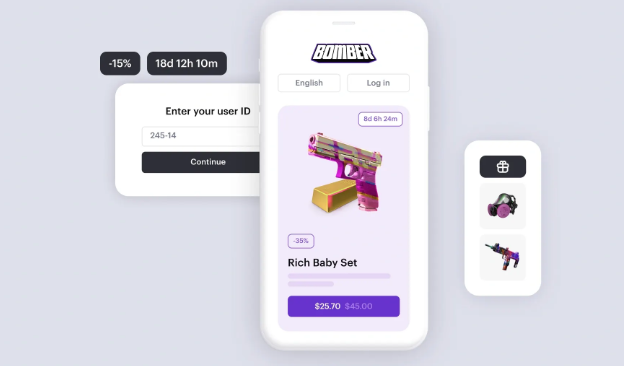
In addition, you can show users how long a limited promotion will be available, providing them with a ticking clock that suggests, “Act now, or this deal will be gone.” This is a valuable and effective way to encourage users to make a purchase or an excellent way to run regular timed promotions that change according to your schedule.
Personalization
To access personalized offers and bundles, players will need to authenticate their accounts. Now, you can use whatever authentication method you prefer, whether it is Player ID, or virtually any other method you use for your game.
You can also set rules for individual users and groups of users and import those rules automatically from your existing game database. In addition, you can set up personalization rules on the Web Shop side by creating and defining user attributes.
Individual items and bundles will still have to be imported to your Web Shop, but player personalization can be imported directly from your game when they log in, saving valuable time and allowing you to easily customize what bundles and offers they see.
Thanks to the new Country Restriction feature, you can choose what countries and regions can see your Web Shop, giving you greater control over what you offer and where. For example, you can restrict your Web Shop to be available only to players in South America, or MENA, allowing them to see specialized offers exclusive to their region.
Web Shop Template
With the new Tab Mode, you can now create tabs for specific areas of your store. Want a page only for currency? Create a tab! Want a page with the latest skins? Create a tab! Users can quickly find what they’re looking for, and you can have more items with greater visibility, allowing for easier browsing and a speedier purchase process.
SETTING UP YOUR WEBSHOP
When you’re ready to start using these new features, head to your Xsolla Publisher Account, an easy-to-use, all-in-one control center that lets you set up and manage every Xsolla product you need to optimize and monetize your games.
Providing simple solutions that allow you to publish your game across multiple platforms. We’re always happy to help you take the next step in your business success.
1. NOTE: Once your Coming Soon Page is live and your release date is within 14 days, you will be unable to change your release date without contacting valve
Pre-Purchase
Pre-purchases can be made on your website with steam keys or your build uploaded.
You can take down your game from the store at any time, by contacting the support 🔰
Early access can go without a build showing it, but you need to contact Valve before going in early access, can be posted in community events, any bug fix, or announcements
Regular steam announcements in the events store and toggling all the visibility on will get you sales
Change the tags on Steam every week, to gain more visibility
Localize the title and description in any language
A coming soon page must have streamed in a loop broadcast and can gain a partnership
Use a random email for contact, not your official one, because you will be bombarded with “curator” requests, but you need to be careful, ask for their curator connect steam link, and use curator connect from your Steamworks page app, don’t split the keys in email.
If you find some influencer that is worth it, include a steam key in the subject line and “unreleased game” never use a gmail . com email to send emails use domain . com, that way will not go in spam use playtest as a part of the crowdfunding reward
Include a link with an invitee to your discord server, for the game into the game page description, after you are live and approved by Valve. Make sure the invitee is set to never expire.
You need to use Q&A carefully
If your product is doing well, it may get bumped up into the Main capsule on the front page.
Your title will also get additional, organic visibility along the way.
Your title may appear on "New and Trending" lists on the front page or on genre or category pages. It can appear on various "Top Sellers" lists if achieved. It can appear on the "Specials" sections if you are running a discount.
It will appear in friends' activity feeds as customers make purchases, share screenshots, earn achievements, and discuss the product.
Your title might be recommended by Steam Curators or appear in the Discovery Queue.
Any visibility your title may have in these other places is in addition to the visibility generated through Launch Visibility and Update Visibility Rounds features.
Update Visibility Rounds
When you make major updates to your application, add new content, release new DLC, or ship new features, is a great time to remind new and existing customers about your product.
The only exception is requesting Release State Override keys for limited beta testing or distributing cosmetic-only DLC to crowdfunding backers.
If you want to run a giveaway on Steam, please reach out to us and submit a ticket.
Steam Keys for Crowdfunding
Steam Keys can be used to fulfill crowdfunding rewards and grant backers access to your product. If you are considering offering Steam
Release State Override Steam Keys and Alpha/Beta Access for Backers: It’s OK to request a relatively small number of Release State
Override keys that allow early, pre-release access to your game on Steam—these keys can be used to fulfill your most passionate crowdfunding supporters so that they can help test your game ahead of launch. However, the maximum number of Release State
Override (beta) keys you can request for this purpose is generally 2,500 in total.
Crowdfunding campaigns should be time-limited.
Do you need to run a bigger playtest for your game for crowdfunding backers? Consider using the Steam Playtest feature. You can request keys for your Steam Playtest app and distribute those to your backers.
Branches (Betas)
Branches, also known as Betas, are specific builds of your application that you have made available publicly or privately through Steam.
1. Share depots with the full app: For any content that's shared between the full app and the demo, put it into its depot and mount the shared depot from the base app into the demo app. See the Shared Content Depots documentation for more info.
2. Share cloud storage with the full app: The saved game from the demo can be stored to the full game's cloud storage so that users can pick up where they left off in the demo once they buy the full game. See the Steam Cloud documentation for more info.
Disabling Your Demo
If you wish for your demo to only be available for a limited time, such as during a game conference or festival, you can deactivate and reactivate it once it has been released.
To Deactivate or re-activate a demo, find the option under 'Technical Tools' on your demo's app landing page and click "Deactivate Demo"
I recommend that the release date be on the 15th, and can be February, March, June, july, or August. only if a game has Halloween vibes, needs to be launched on Halloween, as for Christmas too. You need to stream only on holidays.
You can also do a page as coming soon, only with the prologue, screenshots, cover, and trailer, will gain wishlists even for 5 years, and also can be a DLC to sell too.
Can go in early access without the main game to sell, like the “pre-order”, page. You can also do a pre-order page on your website too. For Early access without a build, you must contact Valve first to get approval.
Internal Testing Options
You will need to test your application yourself before release and you may have other employees that you wish to grant access to help test. The best way to enable these employees to test is by adding them to your Steamworks account. By default, the first user created in a Steamworks account is granted administrative permissions and access to the default application being worked on. That user can then add more users to help develop and test the application. You can read more about adding new users in Managing Your Steamworks Account.
Dev Comp Packages - Important Configuration Note
As a Steamworks developer, you have a special type of packages attached to your publisher group. This package is called a Dev Comp
Package, and it controls what App IDs and Depot IDs your developer accounts will own automatically when logging into Steam.
You can see the contents of your Dev Comp packages by selecting the application from your Steamworks home page, selecting the "All Associated Packages, DLC, Demos And Tools"
External Testing Options - Setting up closed or open testing
Setting up pre-release testing is easy and free on Steam, and can be configured to small private tests or large public tests, or any combination.
There are two common ways of setting up testing for external audiences:
1. Using the Steam Playtest feature.
2. Using the main game's App ID with release override keys.
Steam Playtest
Steam Playtest is a free, low-risk solution to gathering playtest data without the stress of managing email lists and Steam keys or worrying about user reviews, or wishlists. By using a specific associated appID that is linked with, but separate from your main game, you can do the
playtesting you need without interfering with your main game.
Steam Playtest lets you easily gate access to your playtest. You can let in as many or as few players as you need, and deactivate the playtest app when you wish.
A Steam Playtest appID has access to the same Steamworks technical features as your main game - but with reduced store and community
setup. Instead of having its own separate store page, your Steam Playtest signup will live right on your main game, so that customers can sign up and access the playtest but still Wishlist or Follow the main game.
Check out the Steam Playtest documentation for the full set-up instructions, configuration scenarios, best practices and FAQs.
Release Override Keys
While Steam Playtest is the preferred method of enabling closed betas on Steam, release override keys are available if you want to manage your playtest off your main game's App ID and have things like NDAs in place.
3. First, upload a build of your game for your beta testers to play.
Next, is strongly recommend setting up your
Coming Soon
page.
4. It also provides the Steam Community Hub as an easy place for your community to discuss the game and provide feedback, and makes it easy for users to Wishlist your game.
5. Request keys from your “Beta Testing” release override package.
6. Keep track of the keys you hand out. By default, users who activate a key will own the game forever, but if you want to end beta access
or revoke the game from beta testers, that’s fine too. When you’re ready to end beta access, revoke the keys using the key-banning tool.
Note: If you’d like to provide a different version of the game to different audiences, that’s easy to do. For instance, you might have beta testers playing one branch, but provide Press/Influencer access to a separate branch. Learn more about enabling separate beta branches.
Consider using “steam curator connect” on Steamworks to get reviewed by them, before early access.
Testing DLC
Testing a DLC is very similar to testing a game. The DLC has an AppID, and that AppID needs to be in a Dev Comp package that you own
(or acquired with a Key) to test. Some DLCs contain content and others are just used as a license check by the game to determine features to unlock.
You can toggle the ownership (license) on and off using the Steam Console (launch Steam.exe -console), and then using the command enable_license
Testing Game Demos
Testing your game demo works a little differently from testing a game since Steam will not show the demo if the account already has access to the full game in the library. Considering that your development accounts will already have access to the full game, the demo will not appear on the accounts.
To get around that, request release override keys for the demo to activate on a second Steam account that is not associated with your developer account. That will give you a clean install and the ability to test the demo in the same way that a new user would.
Adding Friends to Test
If you need to add brand-new Steam accounts to your friends list to test the multiplayer functionality in your game, you will need to take an extra step.
By default, new accounts are limited in how they can participate in the Steam Community
7. You can activate a Dev Comp type key for your game on one of the new accounts, which will grant the game to that account and will
de-limit that account and allow you to send friend requests from it.
potential testers will be able to request access to your Steam Playtest if they're interested.
You can deactivate your Playtest app when you're ready - or leave it available
if you want to keep experimenting with upcoming features.
How do I set it up?
8. Create a new Playtest app from the Associated Packages & DLC page for your game.
9. Configure your application in Steamworks.
10. When you're ready, complete the release process for your Playtest app. This will include a simplified store page and build review.
Note:
Your playtest will not have its own unique store page, it will only show up as a section on the base game's page. The store review checklist for a Playtest only consists of capsule images and icons.
You can start allowing Steam Playtest signups by making them visible on the store page of your main game.
1. If you want to restart your Playtest after it's ended, perhaps you made some changes or increased server capacity, you can set your Playtest to Visible again.
Signup Type
Changing from a limited-signup playtest (the default) will kick off a process that accepts any pending playtesters. This will generally start within a few minutes.
The signup type option is also controlled from the Steam Playtest page on the partner site. You can change the signup type whenever you need.
Coming Soon
Leave it in coming soon minimum 5 years
Use a prologue only, to launch it first, without demo,in coming soon.
Activates Community Hub: Once your store page is visible to customers, it will also enable the Community Hub. This gives you a place to post announcements, share artwork, and gives your audience a place to share their enthusiasm and discuss your upcoming release.
Up to date and marketing tips
Follow me
send me an email
complete the form
contact@devlandmarketing.com
© All rights reserved to Dev Land Marketing